
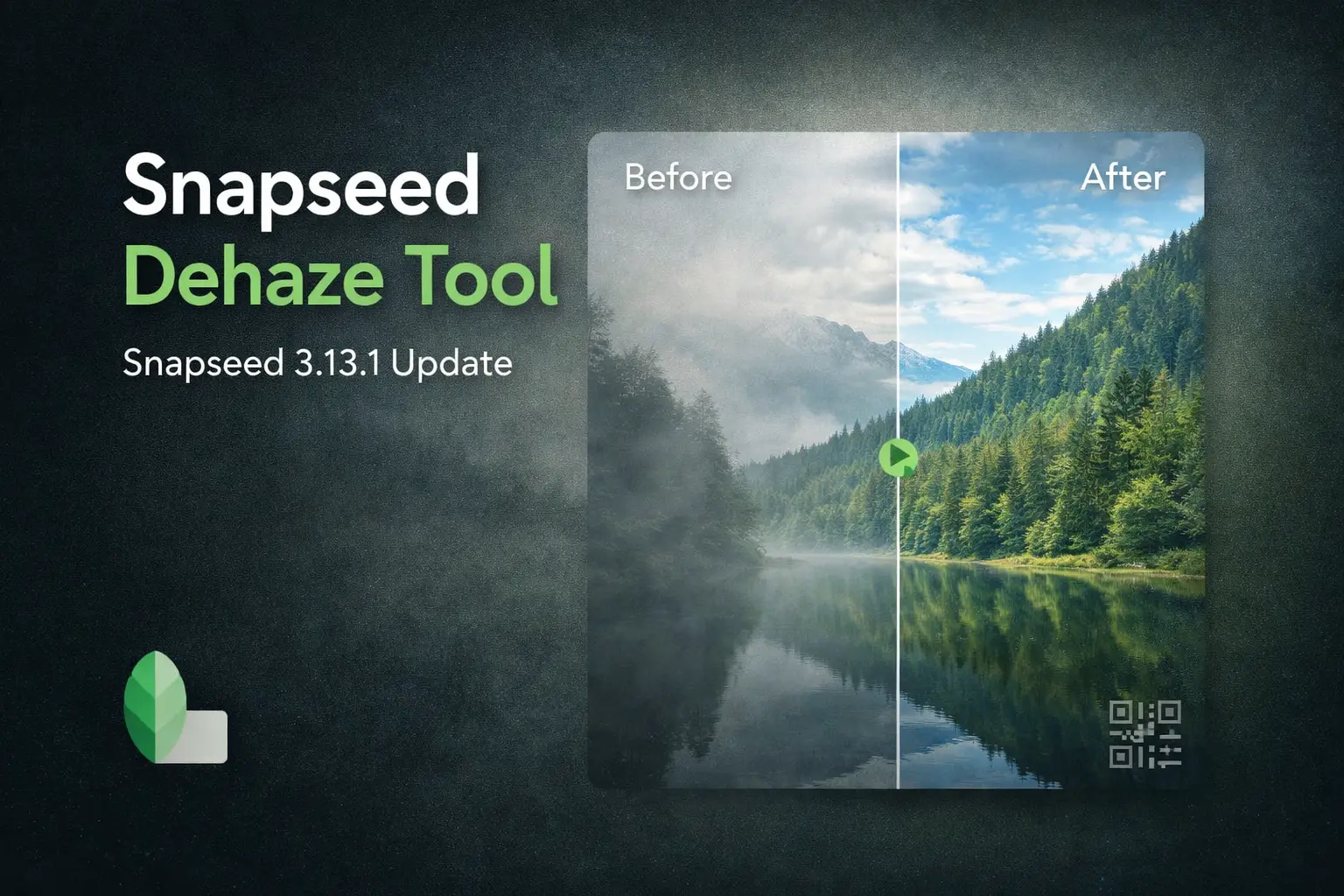
Snapseed Dehaze Tool: New Feature in Snapseed 3.13.1 (Complete User Guide)
Snapseed has finally added the much‑requested Dehaze tool in its latest update, Snapseed 3.13.1. This new feature helps remove fog, haze, smog, and dullness from photos while bringing back contrast and depth in a very natural way. It works especially well for landscapes, city shots, backlit photos, and misty scenes, and unlike many apps, it also allows masking for more control. In this guide, we’ll explain what the Snapseed Dehaze Tool is, how it works, and where it performs better than expected.
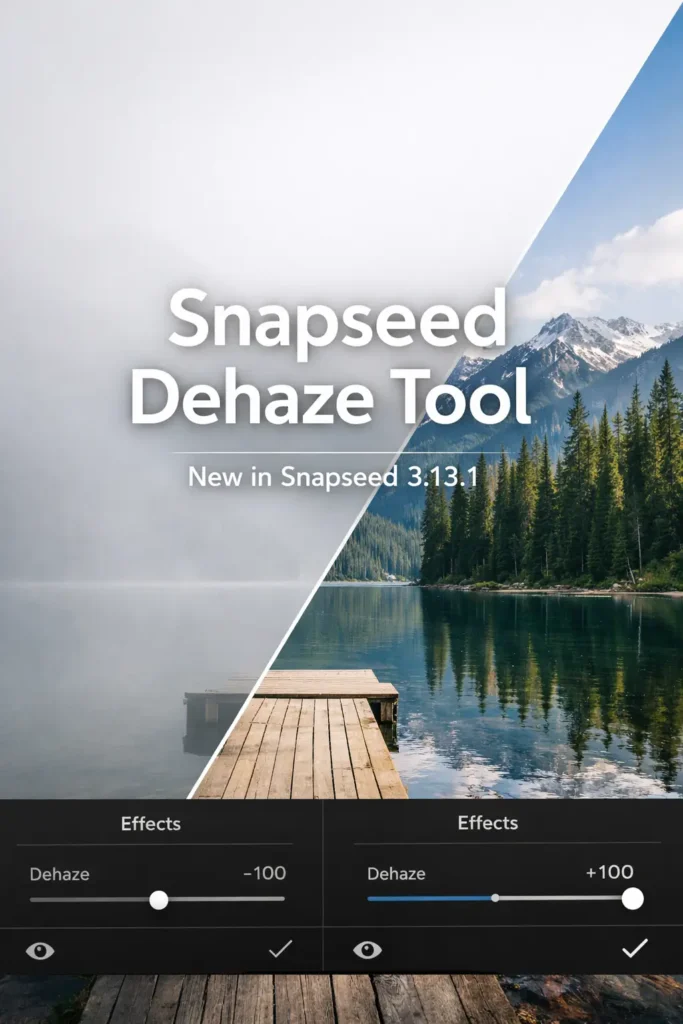
Snapseed 3.13.1 Update Overview
Snapseed 3.13.1 is a recent update released last week, and it clearly shows Google’s focus on making photo edits more realistic and controlled, rather than adding flashy features.
This update is currently available only for iOS users, meaning iPhone and iPad users get access first, while Android is still on the older version.
Try These Snapseed QR Codes
1-Snapseed Vintage QR Codes 2- Snapseed APK Latest Version
What Is the New Dehaze Tool in Snapseed?
The Dehaze Tool in Snapseed 3.13.1 is designed to fix photos that look washed out, foggy, smoky, or low‑contrast. Instead of just increasing contrast or clarity, this tool specifically targets atmospheric haze that hides details in an image.
In simple words, it helps bring back depth, texture, and visibility that haze removes from a photo.
What Dehaze Actually Does?
When you apply the Dehaze tool, Snapseed analyzes the image and adjusts:
- Contrast in hazy areas
- Micro‑details lost due to fog or smog
- Light scattering that makes photos look flat
This is why Dehaze works especially well on landscapes, city skylines, mountains, waterfalls, and backlit scenes.
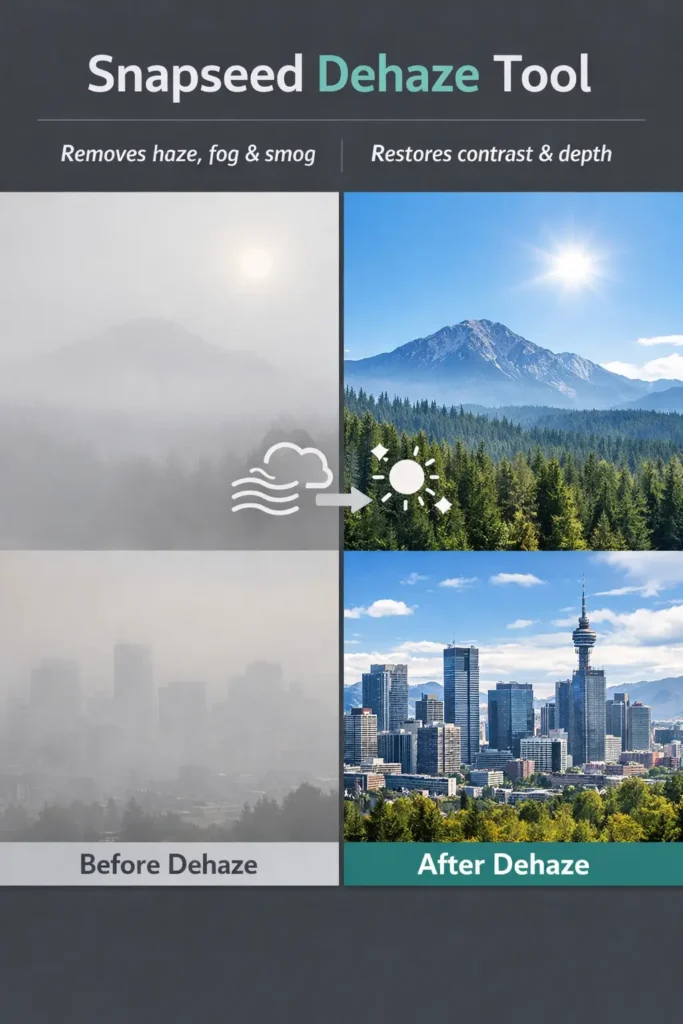
Removing Haze, Fog, Smog, and Glare
The tool is very effective in situations like:
- Foggy or misty landscapes
- Smog‑filled city photos
- Backlit images with glare
- Photos shot in humid or dusty conditions
Instead of manually tweaking multiple sliders, Dehaze does this with one main control, making it beginner‑friendly.
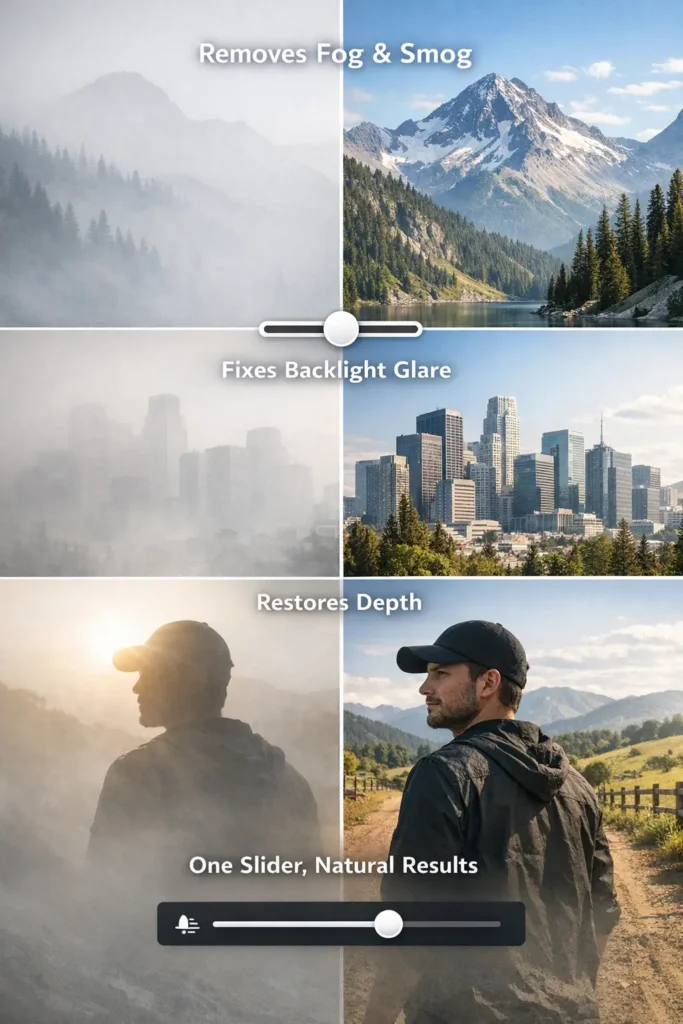
Positive vs Negative Dehaze Values
This part is important and often misunderstood:
- Positive values (+)
Remove haze, fog, and smog
Increase clarity and depth
Make details more visible - Negative values (–)
Add haze intentionally
Create a soft, moody, or cinematic look
Useful for fog effects and atmospheric edits
So this tool is not just for fixing photos — it can also be used creatively.
How the Snapseed Dehaze Tool Works
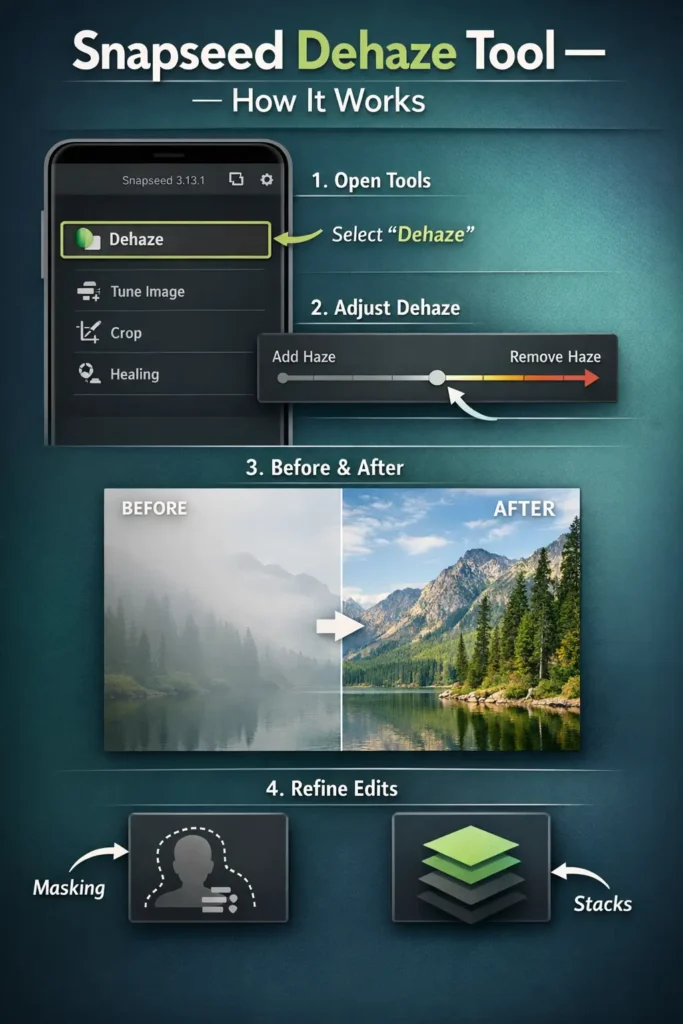
After opening your photo in Snapseed 3.13.1, tap on Tools. You’ll notice the Dehaze tool placed right at the top of the tools list, which clearly shows Google wants users to notice and use it. Once you open it, you’ll see a single main slider. Moving the slider to the right removes haze, while moving it to the left adds haze. That’s the core behavior — simple on the surface, powerful in practice.
What makes Snapseed’s Dehaze different is that it supports masking and stacking, so you’re not forced to apply the effect to the entire image. You can control where and how much dehaze you apply, which is where real‑world use cases shine.
Dehaze for Foggy Landscapes
Foggy landscapes are where the Snapseed Dehaze tool really shows its strength. When you apply positive Dehaze values, Snapseed analyzes the image and restores contrast, depth, and texture that are hidden behind fog or mist.
Instead of making the image harsh, the tool gradually brings back mountain edges, trees, and background details. The best results come from moderate adjustments, not extreme ones. If you push the slider too far, the image can start looking unnatural, so small, controlled moves work best.
If only the background is foggy, you can use Object Mask or Background Mask to apply dehaze only to distant areas while keeping the foreground natural. This keeps the photo realistic and avoids overprocessing.
Removing Smog from City Photos
City photos often suffer from smog, pollution, or dull atmospheric haze, especially skyline shots. Using the Dehaze tool here helps clean up the air visually by increasing clarity and contrast across buildings and streets.
By default, Dehaze affects the entire image. But for city shots, masking is extremely useful. You can mask the background skyline and apply Dehaze only there, while leaving people, cars, or foreground subjects untouched. This prevents skin tones from becoming too harsh or dark.
Many users also stack Dehaze effects instead of pushing one slider too far. Applying Dehaze twice with lower intensity gives a cleaner, more balanced result than one aggressive adjustment.
Adding Mood with Negative Dehaze
This is the part most people don’t expect — negative Dehaze is not a mistake, it’s a creative tool.
Dragging the Dehaze slider to the left adds haze back into the image, which is perfect for cinematic, moody, or dreamy edits. This works especially well for backlit scenes, portraits, sunsets, and atmospheric landscapes.
You can also combine negative Dehaze with Apply Mask from the Stacks menu. This allows you to brush haze only into specific areas, like the foreground or light sources, while keeping the rest of the image sharp. Using opacity levels (25%, 50%) helps maintain subtlety and realism.
Negative Dehaze is best used gently — it’s meant to create mood, not blur the photo completely
Advanced Dehaze Editing with Masks (Why Snapseed Beats Lightroom Free)
This is where Snapseed’s Dehaze tool becomes powerful. It is not just a single slider. You get masking and stacking, which most free apps do not offer. This gives you control without paying for a Pro plan.
Using Object Mask with Dehaze
- After applying the Dehaze tool, open Stacks and tap View edits. From there, choose Apply Mask.
- Now select Object Mask. Snapseed automatically detects the main subject, like a person, car, or building.
- This lets you apply dehaze only where it is needed, instead of the full image.
- This is useful when haze is only in the background, not on the subject.
Editing Background Without Affecting Subjects
Many photos fail because dehaze is applied everywhere. Faces become harsh and colors look heavy. With masks, you can avoid this.
- Select the background using Object Mask or Background Mask.
- Increase dehaze only on the sky, fog, or distant area.
- Keep the subject untouched so skin tones and details stay natural.
- This works very well for portraits, travel photos, and city shots with smog.
Stacking Multiple Dehaze Adjustments
Snapseed allows you to apply the Dehaze tool more than once. This is called stacking. Instead of pushing the slider too far, apply dehaze in small steps. Add one light dehaze layer, then another if needed. You can mask each layer differently. This keeps contrast under control and avoids over‑processing.
Lightroom free does not allow this level of control. In Snapseed, it is fully free and flexible. This is why the new Dehaze tool is not just an update. It changes how much control you get in mobile photo editing.
Dehaze Tool Performance Issues (Reddit User Reports)
Since the release of the Snapseed Dehaze tool in version 3.12.0 and 3.13.1, many users have shared their real experience on Reddit. While the tool itself is powerful, some performance issues are being reported, especially by iPhone users. This section is based purely on user discussions, not assumptions.
Dehaze Lag on iPhone 14 Pro Max
Multiple users with iPhone 14 Pro Max running iOS 17.7 reported noticeable lag when using the Dehaze tool. The lag happens while adjusting the slider and becomes more obvious when the effect is applied. Other Snapseed tools work smoothly on the same devices, which suggests the issue is specific to Dehaze and not the phone hardware.
Snapseed Dehaze Slow Processing When Saving Images
Another common complaint is slow saving time after using the Dehaze tool. Users mentioned seeing a spinning loading animation for several seconds when saving edits. This delay does not appear when using tools like Adjust, Tune Image, or White Balance. Some users also noticed that undo and redo actions respond instantly, but saving the image takes much longer.
Snapseed Masked vs Global Dehaze – Does It Matter?
Users tested both global Dehaze and masked Dehaze to see if performance improves. According to their feedback, the lag happens in both cases. Masked Dehaze sometimes feels even slower, especially when object masks are involved. This confirms that the slowdown is likely related to how the Dehaze tool processes data, not how it is applied.
At the moment, these issues seem limited to iOS versions where the new Snapseed 3.x interface is available. Android users are still waiting for this update, so there is no confirmed feedback from that side yet.
Being open about these limitations helps users set the right expectations. The Dehaze tool is strong, but it is still new and clearly needs optimization in future updates.
What’s New in Snapseed 3.13.1 -Beyond the Dehaze Tool
While the Dehaze Tool is the headline feature, Snapseed 3.13.1 also brings a few important upgrades that quietly improve overall editing quality—especially for users who care about realism, vintage looks, and controlled edits.
Instead of adding flashy tools, this update focuses on better control, better masking, and more natural results, which fits well with serious photo editing workflows
Enhanced Color Tool with Spread Control
The Color tool now includes a Spread slider, which helps you control how wide or narrow a color adjustment should apply.
This means:
- You can target very specific color tones without affecting similar shades nearby
- Subtle color corrections feel smoother and more natural
- It’s easier to fine‑tune skies, skin tones, and vintage color palettes
For users creating classic or film‑style edits, this gives much better precision than before.
New Film Grain Patterns for Vintage Looks
Snapseed has added new film grain styles designed to look more authentic, not digital.
These new grain patterns:
- Work especially well with vintage and retro edits
- Add texture without destroying details
- Look natural on both color and black‑and‑white photos
If you’re using Snapseed for old‑school film vibes, this update directly supports that style.
Better Masking Across Editing Tools
Masking is now more consistent and available across more tools—not just Dehaze.
You can:
- Apply edits only to the background or subject
- Erase parts of a mask easily
- Stack multiple edits and control where each one applies
This makes Snapseed feel far more flexible, especially compared to free alternatives that apply effects globally.
Snapseed Dehaze vs Lightroom Dehaze (Free Version)
|
Feature / Aspect |
Snapseed Dehaze Tool (Free) |
Lightroom Dehaze (Free Version) |
|
Dehaze Availability |
Fully available for free |
Available, but limited |
|
Edit Type |
Works with global + masked edits |
Global only in free version |
|
Masking Support |
Object mask, background mask, brush masks included |
Masking locked behind Pro paywall |
|
Add Haze (Negative Values) |
Yes – can add haze for mood and atmosphere |
Yes, but only globally |
|
Stacking Dehaze Effects |
Possible (apply multiple Dehaze layers) |
Not practical without exporting & re‑importing |
|
Control Flexibility |
High – combine Dehaze with masks and stacks |
Limited in free version |
|
Workflow Speed |
All edits done inside one session |
Often requires extra steps |
|
Best For |
Detailed edits, selective haze control |
Quick global haze removal |
|
Cost |
Completely free |
Many advanced controls require subscription |
Is the Dehaze Tool Available on Android?
Right now, the Snapseed Dehaze Tool is only available on iOS. That means you’ll find it on iPhone and iPad devices running the newer Snapseed 3.x versions, but not on Android yet.
Android users are still on the older Snapseed interface and version line, which does not include Dehaze, advanced object masking, or the newer UI changes. Google hasn’t shared any official timeline for when these features will arrive on Android, so it’s best to avoid expecting a release date.
If you’re editing mainly on Android, you currently won’t see the Dehaze option inside the Tools menu. For now, this feature remains an iOS‑exclusive update, and Android users will need to wait for a future rollout.
FAQs
Conclusion
The Snapseed Dehaze Tool in version 3.13.1 is a strong, practical upgrade that finally gives users real control over haze, fog, and atmospheric depth without paying for a subscription. Its support for masking and stacked edits makes it more flexible than the free version of Lightroom, especially for landscape, travel, and street photography. While some iOS users are facing performance lag, the feature itself is powerful, free, and clearly aimed at realistic photo editing. If you’re on iPhone or iPad, this update is worth using; if you’re on Android, you’ll need to wait.